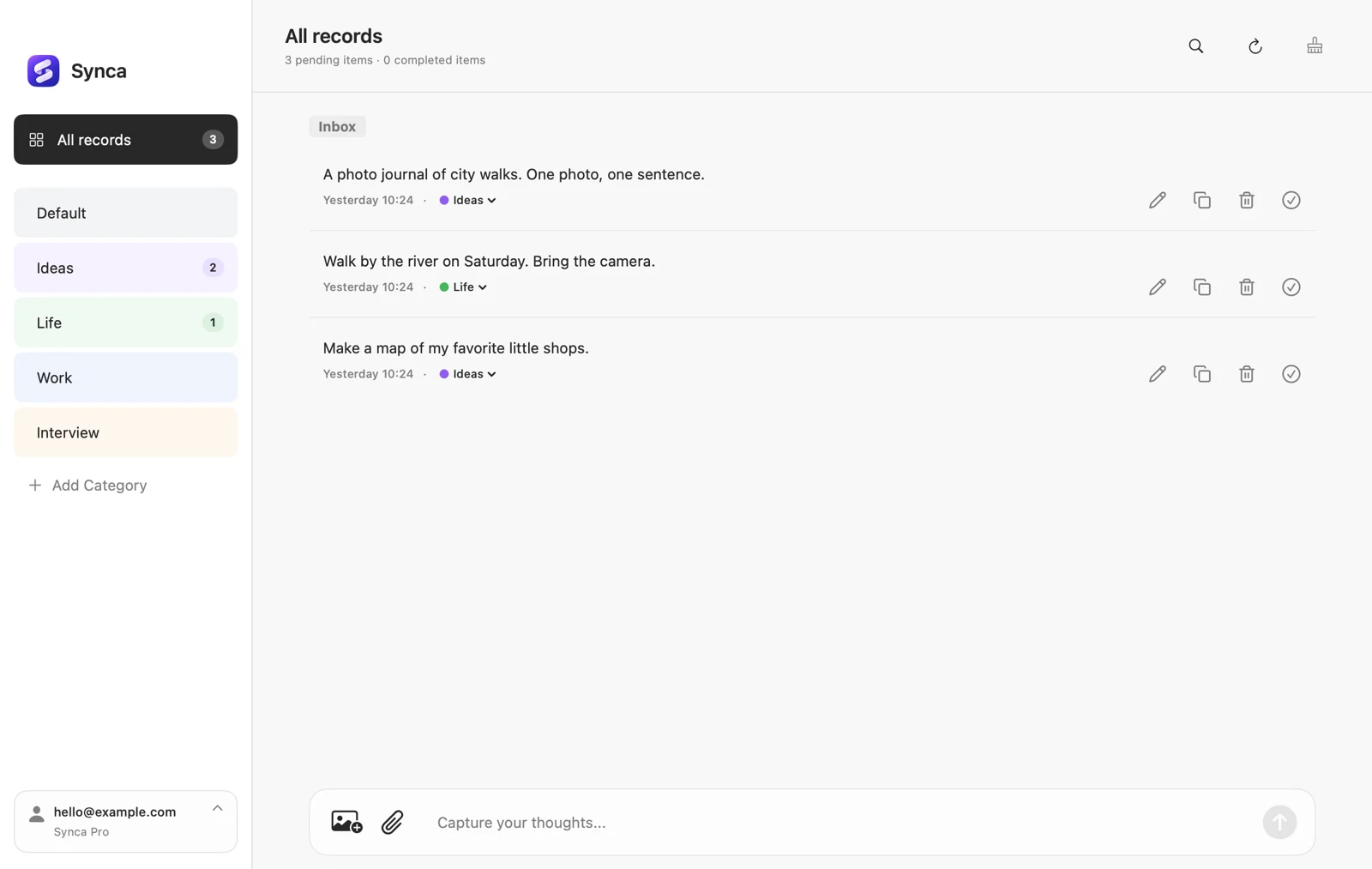
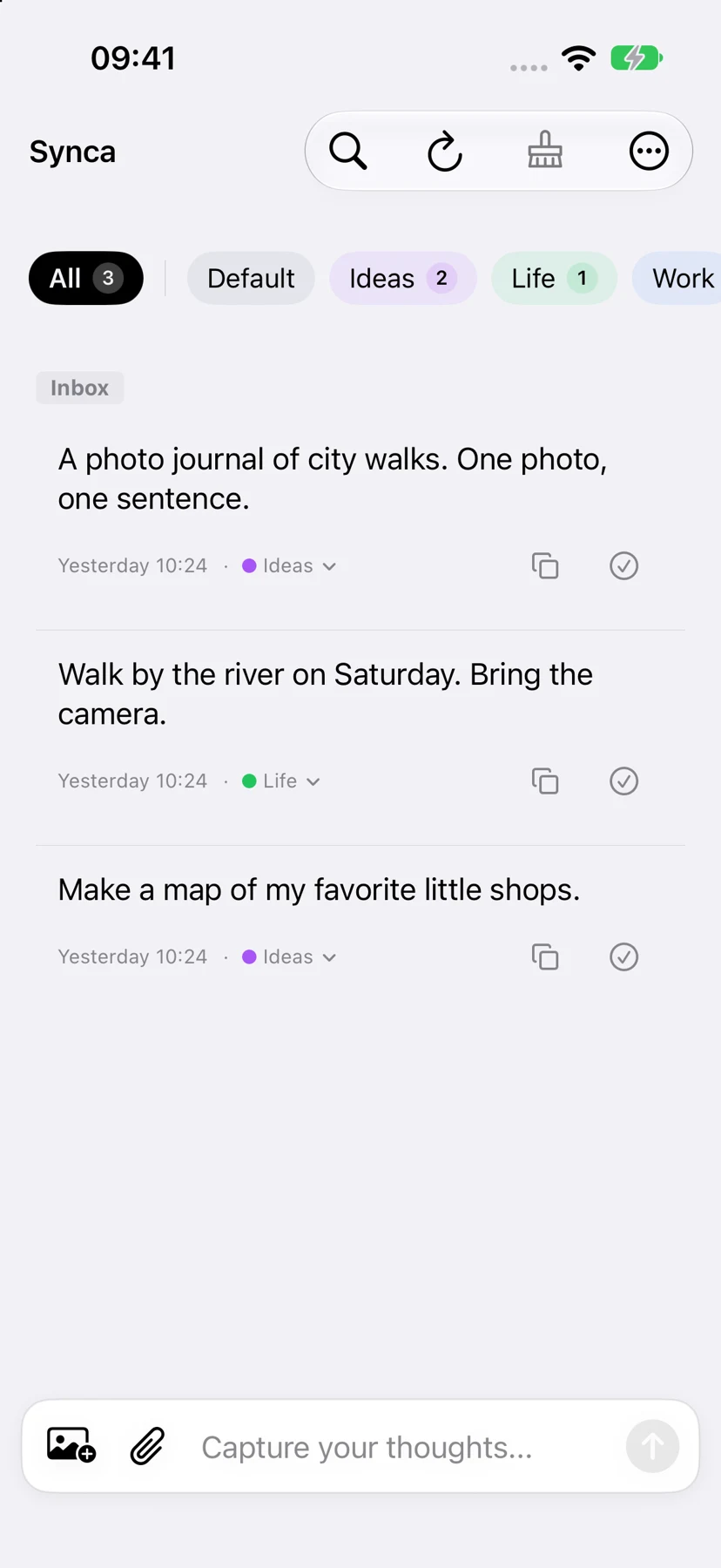
Capture ideas.
Sync instantly.
Ideas, to-dos, images and files. All in Synca.
From your phone to your computer, keep things moving.
iPhone · iPad · Mac · Web
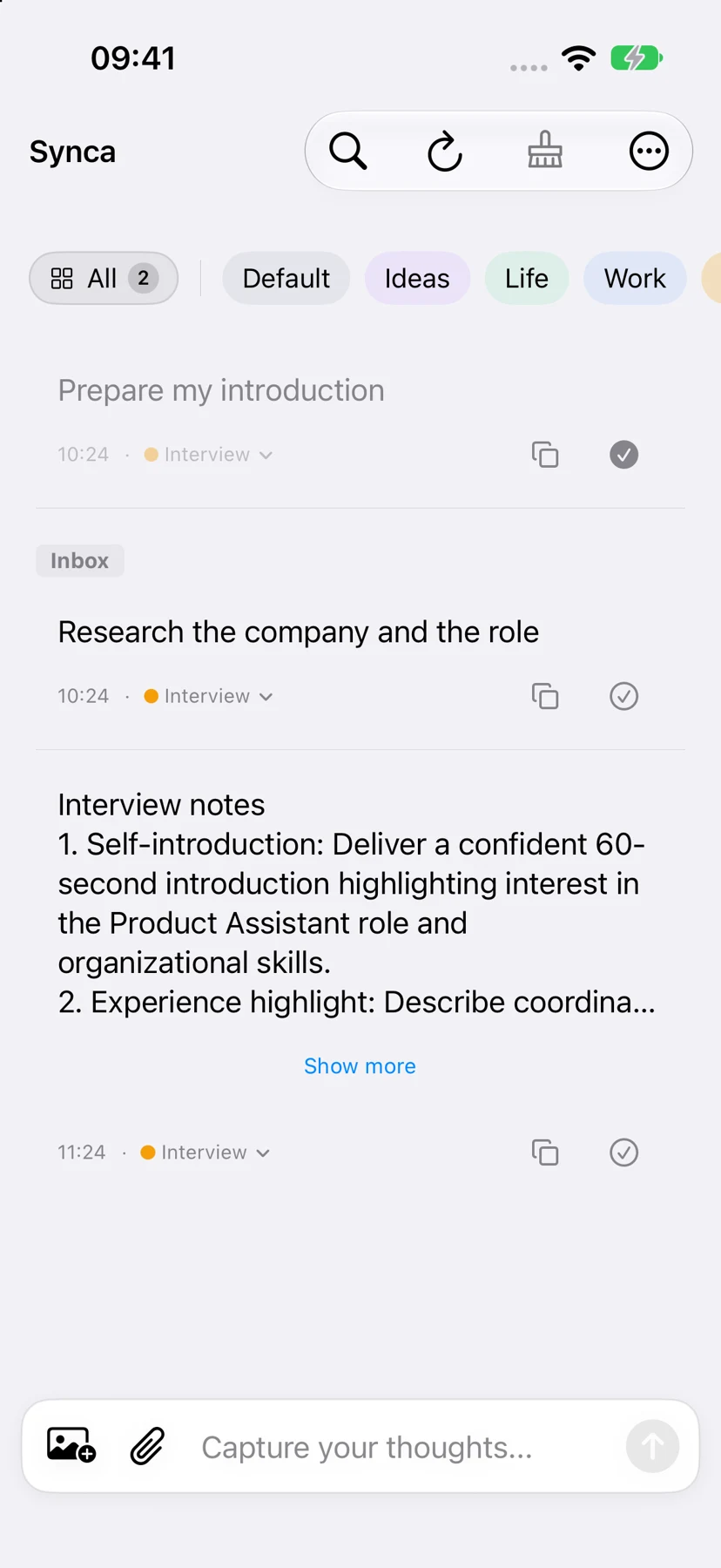
Capture on your phone. Pick up on your computer.
Capture now. Organize later.
A thought, an image, a file. Give it a category when you’re ready, and check it off when it’s done.
Switch devices. Keep going.
Your records and completion status sync with your account, across your phone, tablet and computer.
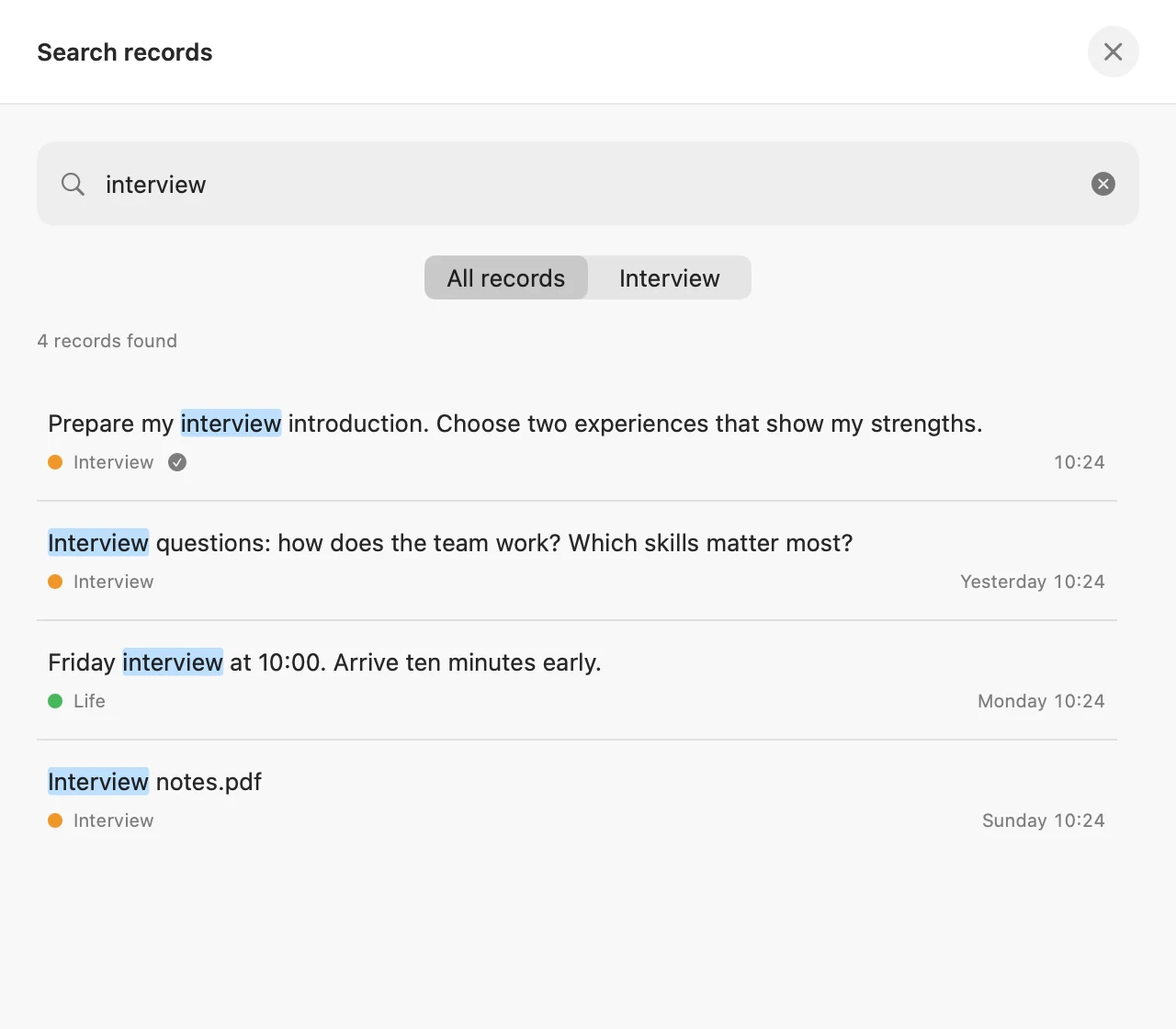
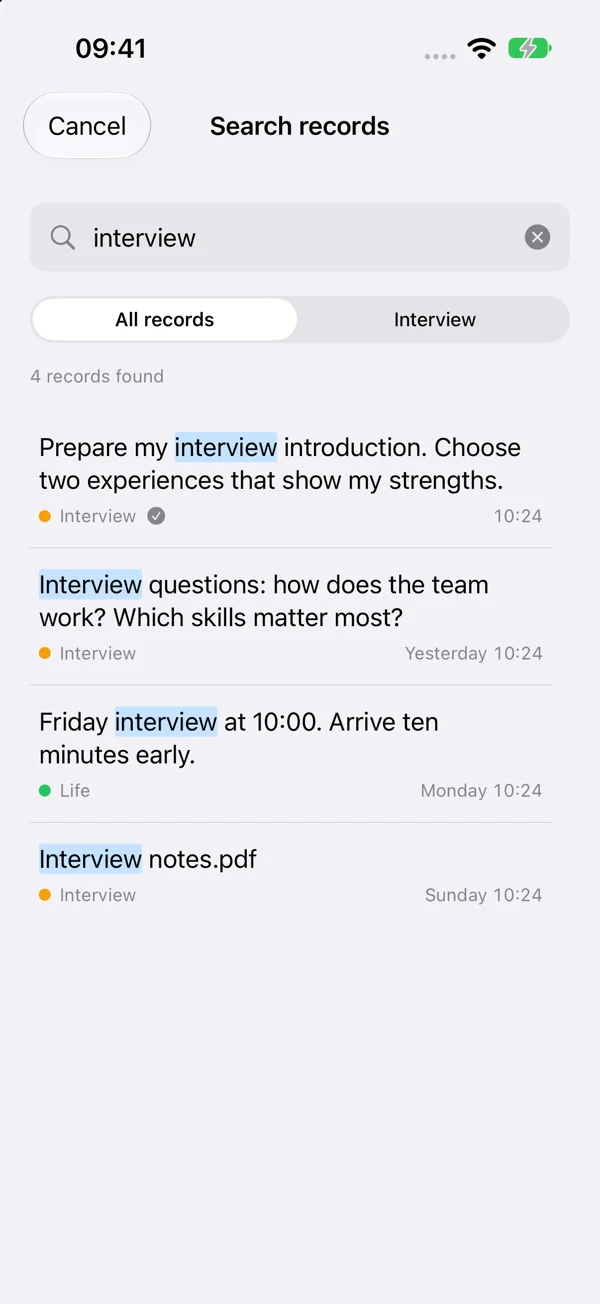
Find what you had in mind.
Search record text or filenames, including Chinese pinyin and initials. No need to remember the full name.
SYNCA · FILES
Your personal
file transfer assistant.
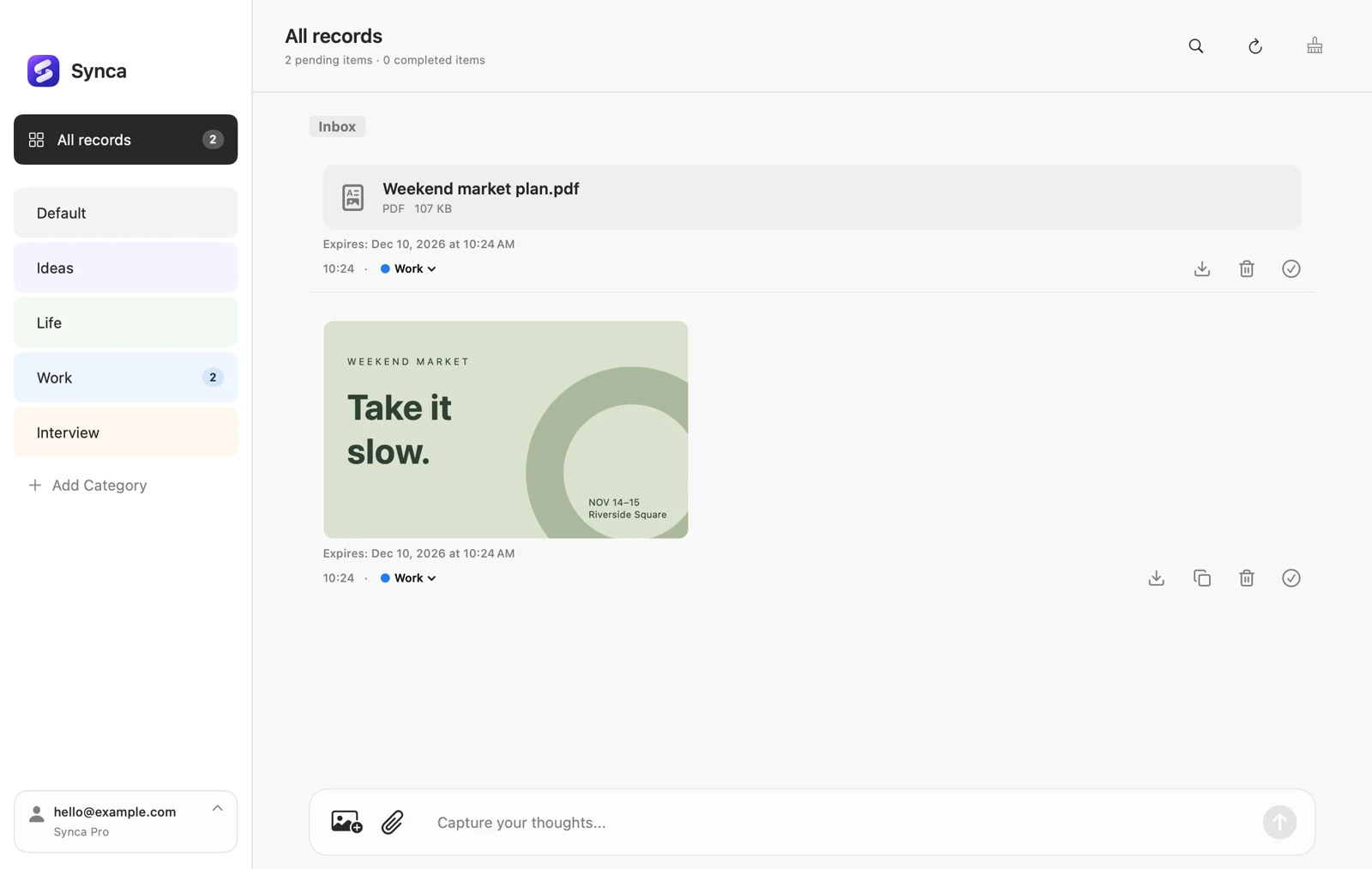
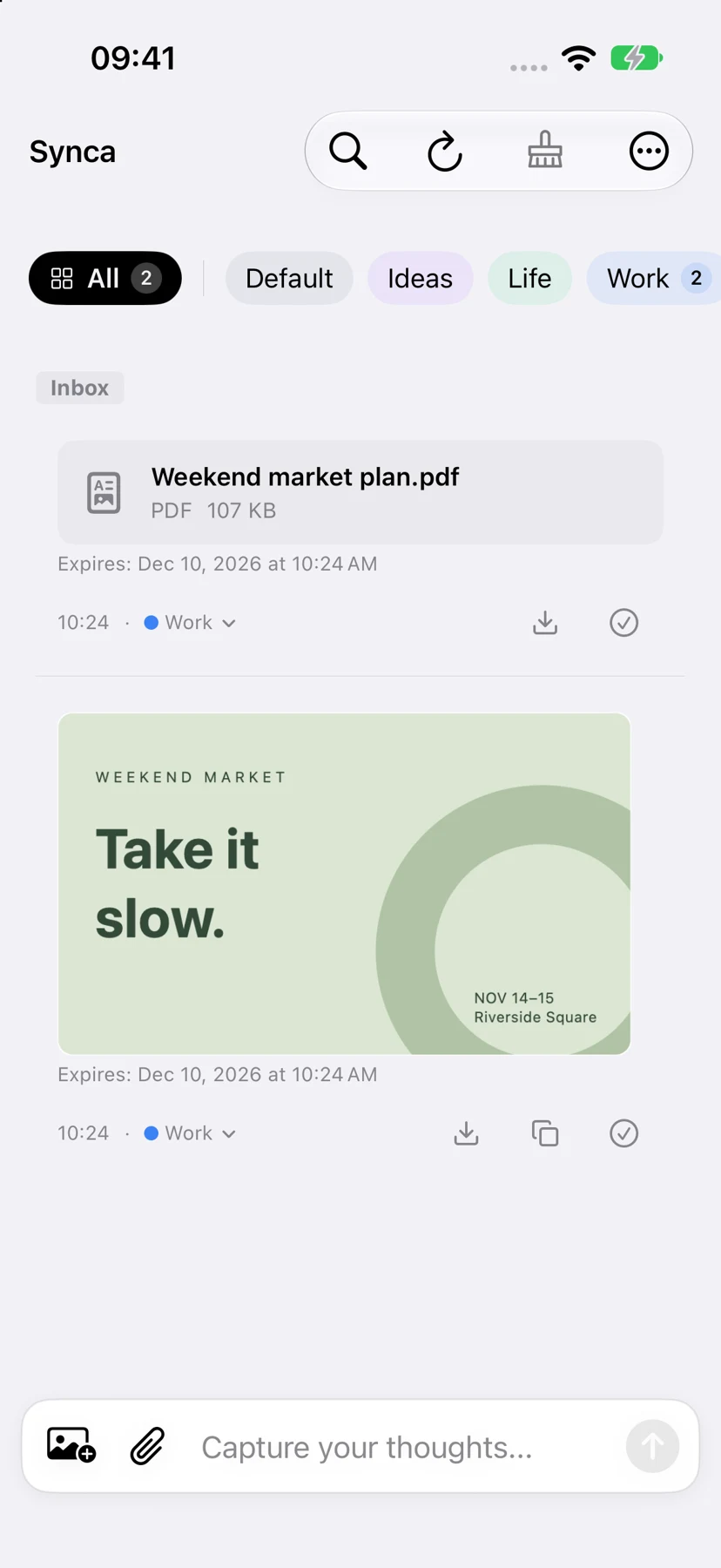
Use a photo from your phone on your computer. Take a file from your desk with you. Keep what you need in Synca, ready on your next device.
Images and files have retention limits. See the app for current allowances and retention periods.
The same event files, on iPhone and Mac.
SYNCA + AI PRO
Put your records
to work with AI.
Bring your scattered ideas to the AI app you already use. Find records, organize thoughts, and save the results back to Synca.
-
01Find records
-
02Organize ideas
-
03Save to Synca
ChatGPT + Synca
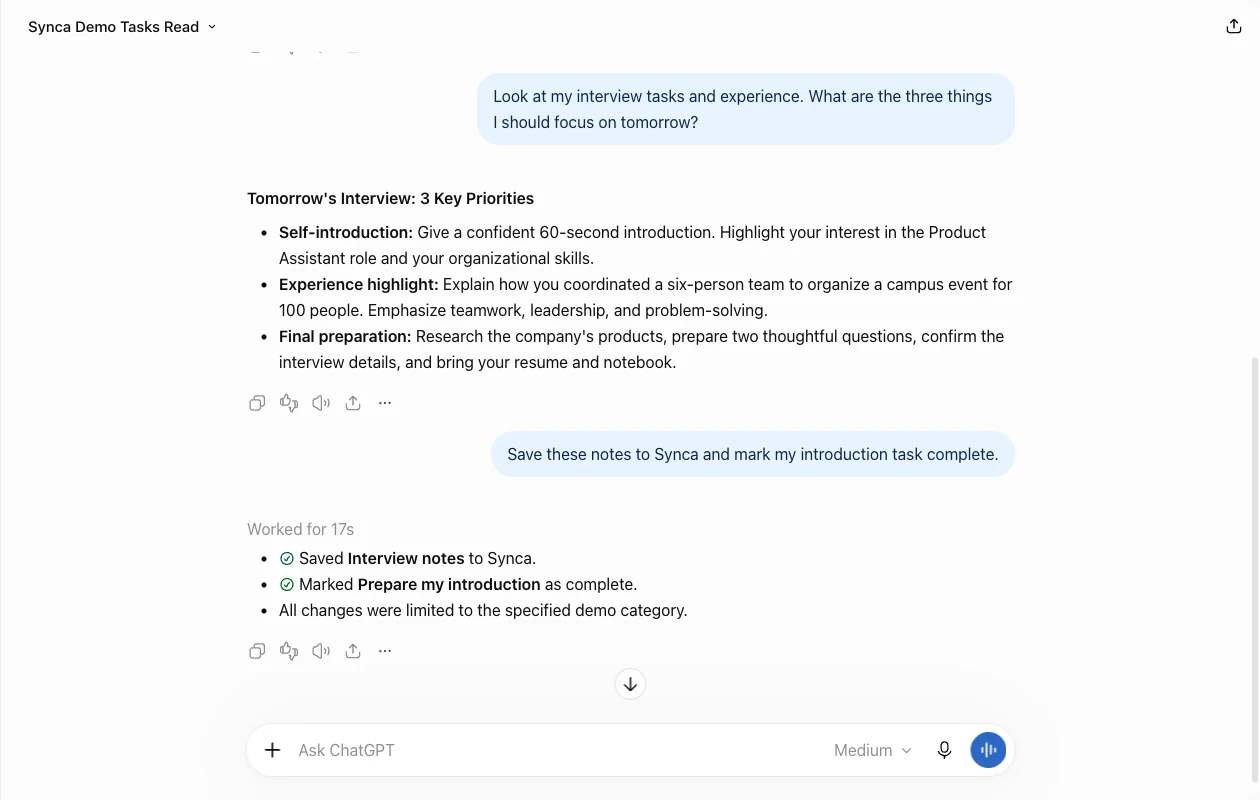
Turn existing records into interview notes. Save them back to Synca.
AI connections require Synca Pro, a compatible external MCP client, and your authorization. Synca does not include a built-in AI model.
SYNCA · SEARCH
A little clue. The right record.
Search text, filenames or Chinese pinyin. Find the record and pick up where you left off.

Make room for your next idea.
Start with the device you have at hand.
Start for free · Explore more features in the app